Right-Click Actions
For a Warehouse order
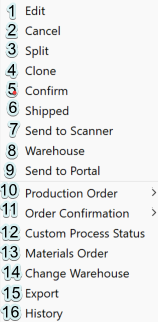
- Edit, select that every time you need to add or amend something on the order
- If just double-click all the fields are in “read mode” only
- Cancel, if a PO needs to be cancelled select it and the stock will be taken off the supply column in the warehouse it is destined for
- Split, at times an order needs to be split normally because of part of the order being delivered before the balance of the order
- Clone, an order can be cloned (a copy created) for many reasons among which are re-order, two identical orders for two different warehouses/customers
- Confirm, to confirm a PO is only to remind user that all has been confirmed and the order is in progress
- Shipped, once the order leaves the factory the order should be set to 'Shipped'; it is especially important when orders are for an integrated warehouse as it will trigger a pre advice to be sent
- Send to Scanner, if warehouse scanning is used for booking goods into warehouse and/or is being for Picking
- Warehouse, this is to book an order into warehouse. The booking in can either be in full or partly. If partly, i.LEVEL will split the order into a warehoused order an one still in supply
- Send to Portal, if the i.LEVEL Supplier Portal is in use _ what’s under the line is exports and printing
- Procution Order, print production order
- Order Confirmation, print order confirmation
- Custom Process Status, set Custom Process status
- Materials Order, to get the raw material orders (only visible when Materials are enabled)
- Change Warehouse, ability to change warehouse for the order to be delivered to
- Export, allows to export item information to Excel & csv
- History, here you can see who and what has happened with the order
For a Direct order only
A shipped order can be set to 'Complete', meaning no invoice needs created.
Bulk Send to Scanner
On 'Send to Scanner' on right-click (point 7, above), it's possible to select multiple orders > right-click > Send to Scanner, to send orders to scanner in bulk:
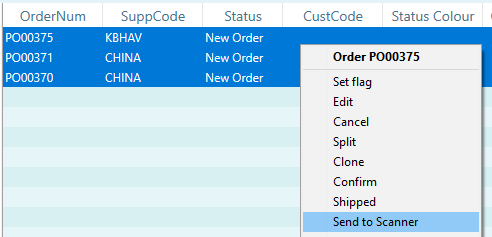
Selecting 'Send to Scanner' will open this window:

To assign orders to scanner, you can either:
- Click on the order row in the 'Device' column and select a scanner from the popuplist:
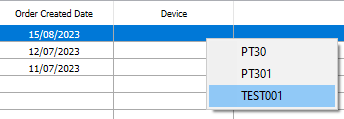
- Click 'Apply Device to all Jobs' and apply all orders in your list to the same scanner:

Other options:
- Note - you can enter text here to send to the scanner, as a note attached to the order for the picker to read
- By Pack - select, if you are scanning by pack
- By Location - select, if you are scanning by warehouse location. This option is off by default
Lastly, to commit the orders so they will be picked up by assigned scanners, click 'OK' in the bottom right.